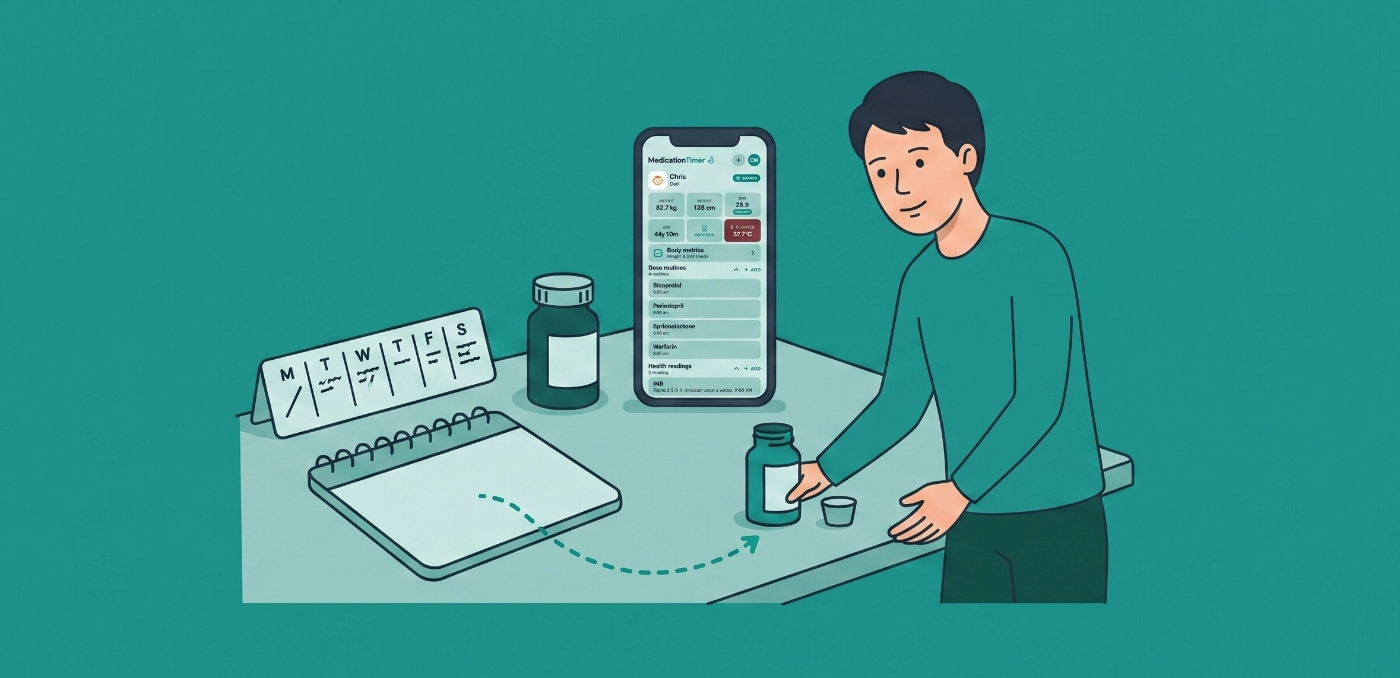
Sticky notes and group chats are a fragile way to run a household medication schedule. Someone forgets the evening tablet. The weekly injection lands on the wrong day. The “take this half an hour after breakfast meds” instruction only works if both people remember the first dose was late.
Most reminder apps treat every bottle like the same clock appointment. Fever apps often skip long-term schedules altogether. Medication Timer is built for households that need schedule shapes that match real care plans: calendar routines for medicines that belong on a plan, as-needed safety timers when life does not, and short Care courses when an illness script should end cleanly.
That combination is why we are comfortable calling Medication Timer one of the most flexible medication routine apps for families: not because every obscure rule exists as a toggle, but because the shapes people actually use live in one product. Daily through monthly and custom intervals. Relative “B after A was logged” follow-ups. As-needed spacing and stagger. Finite Care courses. Scheduled readings with the same cadence language. Shared caregiver state on Family Care. Few apps cover that full set without forcing you to fake one job as another.
Dose routines are the calendar half of that design. Same family member, same medicine, repeating on a pattern you choose. They appear on Today, drive mobile reminders with Taken / Snooze, and stay deliberately separate from as-needed timers and short Care courses so a fever night does not permanently clutter everyday scheduling.
This guide walks through each routine type, how to set one up, and real household examples. Always match times and offsets to the label or advice you already follow. Medication Timer helps you remember; it does not invent a care plan.
Available on iOS, Android, and the web app.
For how routines sit next to as-needed timers, stagger follow-ups, Care courses, and quick timers, see Medication timer types: routines and Care (confirm URL once live). For how that flexibility compares with adherence apps, fever apps, and platform health hubs, see Medication routines vs as-needed: 9 apps compared.
What flexible routines look like here
When you configure a routine, you are not stuck with “every day at 8:00” alone. Medication Timer supports these schedule modes:
| Mode | Product path | Best for |
|---|---|---|
| Daily | At a time → Daily (default) | Same clock time every day |
| Weekly | At a time → Weekly | Specific weekdays + a clock time |
| Monthly | At a time → Monthly | Same date each month (with First due) |
| Hourly | At a time → Hourly | Repeating by the hour (minute past the hour) |
| Custom | At a time → Custom | Every N days / weeks / months, or every X hours (with First due) |
| After another medication | Relative mode | N minutes after another routine’s dose is logged |
Quick setup (Family Care) adds Twice daily and Three times daily in one tap. Each preset creates separate daily routines at meal times, so every slot still has its own reminder and Taken state. On the free plan, add each daily slot yourself the same way. You can clear a quick setup and fall back to a single schedule before you save.
First due appears for Monthly and Custom so you can set the routine up before the day it starts. The schedule counts forward from that date. End-of-month dates clamp safely (the 31st becomes the last day of shorter months).
For scheduled health readings, Daily, Weekly, Monthly, and Custom work the same way (no Hourly). Browse a future day on Today to see readings that are due that day. If you log a weekly, monthly, or custom-interval reading within the early window, the app can ask whether to count it as the upcoming due reading so the next nag does not fire. The same early-log idea applies to matching dose cadences.
After another medication remains a real differentiator. Medicine B waits on when Medicine A was actually taken, not on A’s original clock time. In our nine-app comparison, adherence tools such as Medisafe and MyTherapy are strong at personal schedule reminders, and Dosecast is strong at flexible interval rules for one medicine. Household relative follow-ups between two medicines (and shared stagger on as-needed timers), plus monthly/custom calendars and Care courses in the same app, is Medication Timer’s design, not a footnote.
Pair routines with the rest of the product and you get coverage many single-lane apps do not attempt in one place:
- As-needed timers for “when is it safe to give again?”
- Also stagger another medication for paired PRN plans you already follow
- Care short courses (Family Care) for antibiotics and similar finite scripts
- Today as one day view across members, with shared caregiver state on Family Care
- Scheduled readings that speak the same Daily / Weekly / Monthly / Custom language as doses
What a dose routine is (and is not)
A dose routine is a long-term schedule slot for one family member and one medication (or a dependent that trails another routine). You create and edit routines under Family. Today is where you see what is due, taken, waiting, or skipped for the day.
Routines are not:
- As-needed timers, which answer “when is it safe to give the next dose?” after you log one
- Short medication courses in Care (Family Care), which run for a fixed number of days during an illness and then stop
- The Medications library itself (name, strength, spacing rules). Routines reference library medicines; they do not replace them
If you need interval spacing on a fever night, use an as-needed timer (optionally with Also stagger another medication). If you need a seven-day antibiotic during flu, prefer a Care course so it does not permanently clutter everyday scheduling. That separation is the point: each tool matches the job, so you do not fake a fever liquid into a forever 8:00 a.m. alarm.
Where to set a routine
- Open Family and select the member.
- Add or edit a medication routine for that member (labels may say routine or schedule depending on the screen).
- Choose the medication from your library (add it under Medications first if needed).
- Optionally use Quick setup for twice or three times daily (Family Care), or pick At a time / After another medication for a single schedule.
- For Monthly or Custom, set First due if the first occurrence is not today.
- Save, then open Today to confirm the day’s slots look right.
- On iPhone or Android, allow notifications so routine reminders can fire with Taken / Snooze actions.
On the free plan, each member has a combined cap on dose routines plus enabled health readings (three per member; twelve household-wide). Family Care removes those caps. Price is shown in-store for your region.
The schedule modes
Daily (At a time)
Use daily when the care plan is “every day at about the same clock time,” whether once or several separate routines (for example 8:00 a.m. and 8:00 p.m. as two daily slots). Daily is the default when you create a new routine.
Example: Parent on a morning blood pressure tablet
Alex takes one tablet every morning with breakfast. You add a daily routine for Alex at 7:30 a.m. Today shows the slot each morning. The mobile reminder fires at 7:30 with Taken or Snooze. If Alex takes it at 7:45, you still log it so adherence and shared caregivers stay accurate.
Example: Child with twice-daily maintenance medicine
Sam needs the same medicine at 8:00 a.m. and 8:00 p.m. Use Quick setup → Twice daily (Family Care), or create two daily routines for the same medication. Review the pending slots, then save. Each slot gets its own reminder and Taken state on Today.
Weekly (At a time)
Use weekly when doses only happen on certain weekdays.
Example: Grandparent with a weekly injection
Nana has an injection every Monday at 10:00 a.m. Set a weekly routine with Monday selected and 10:00 a.m. Other days stay clear on Today, so the household is not nagged about a dose that was never due.
Example: Medicine on school days only
If a clinician plan is weekdays only, pick Monday through Friday and leave weekends off. That keeps Saturday quiet unless something else is scheduled.
If you log a weekly dose a day or two early, Medication Timer can ask whether to count it as due for the upcoming slot or keep the original due day. That cuts down on nagging without making you edit the schedule by hand. There is no separate setting for this early window (see the FAQ: What happens if I log a dose or reading early?).
Monthly (At a time)
Use monthly when the plan is the same calendar date each month (for example an injection on the 15th).
Example: Monthly B12 injection
Set Monthly, pick the First due date (that calendar day repeats each month), and the clock time. You can create the routine before that day. Today only shows the slot on matching dates. End-of-month dates clamp safely (the 31st becomes the last day of shorter months). Early logs within a short window can count toward the next monthly occurrence the same way weekly early logs can.
Custom (At a time)
Use Custom for every N days or weeks (for example every 2 weeks), every N months, or every X hours as an ongoing clock plan (4 / 6 / 8 / 12 hour presets). Set First due so the interval counts from the right day without forcing you to create the routine on that day. Daily remains the default; Custom is only for those less common shapes.
Example: Injection every two weeks
Set Custom → Weeks → 2, choose First due (for example the next Saturday you want), and the time. Today shows the slot on that day and every two weeks after. Looking ahead on the date strip shows future due days the same way daily and weekly do.
Example: Ongoing every-eight-hours plan
If the care plan is a steady every-8-hours clock (not “as needed”), Custom → every 8 hours keeps that pattern on Today. If the medicine is really “every four to six hours when needed,” use an as-needed timer instead.
Hourly (At a time)
Hourly routines repeat by the hour at a chosen minute past the hour (for example, every hour at :00, or every hour at :15). Use this only when your existing care plan truly calls for that pattern, not as a substitute for as-needed spacing rules.
Example: Strict clock-based cadence during recovery
After discharge, Jordan’s plan is a medicine every hour at the top of the hour for a defined period you are managing as an ongoing schedule (not a Care short course). An hourly routine at minute 0 surfaces each occurrence on Today. When the fixed course is short and illness-bound, prefer a Care short course instead so it ends cleanly.
If the medicine is “every four to six hours as needed,” that is usually an as-needed timer, not an hourly routine.
After another medication
This mode ties Medicine B to when Medicine A was actually logged, not to A’s scheduled clock time. Late mornings stay honest. Shared caregivers see the same waiting → due path after sync.
- Create (or keep) the anchor routine for Medicine A (usually daily or weekly).
- Add a second routine for Medicine B.
- Choose After another medication, select the anchor, and set the offset (for example 30 minutes).
- Save.
Until A is logged, B shows as waiting on Today. Logging A creates a shared stagger follow-up for B due at logged time plus the offset. If A is skipped or never logged for that occurrence, no follow-up is created. Dependencies stay on the same member; a relative routine cannot anchor another relative routine.
Example: Thyroid tablet, then coffee-sensitive medicine
Priya’s plan is Medicine A at 6:30 a.m., then Medicine B thirty minutes later. A is a daily routine at 6:30. B is After another medication → 30 minutes after A. One morning A is logged at 7:10. B becomes due at 7:40, not 7:00. Both caregivers see the same waiting → due path after sync.
Example: Antacid after a morning tablet
If the label says to wait a set time after another medicine, model the first as the daily anchor and the second as the relative routine. Do not invent the gap; enter the offset you already follow.
From 2.6.1, relative routines use the same shared follow-up model as as-needed stagger. More detail: Medication Timer 2.6.1 release notes and How do I set a routine after another medication? (FAQ once synced).
How routines show up on Today and on your phone
- Today lists routine slots for the household day, alongside other items (as-needed activity, readings, Care banners when someone is unwell).
- Move the date strip to review yesterday or look ahead. Free accounts see full detail for the last three local days; Family Care unlocks longer history (including future days when you are planning ahead).
- On mobile, primary reminders fire at the scheduled time; optional urgent follow-ups may apply when a dose stays unlogged (see your Settings → Notifications and the smart reminders help articles).
- Shared caregivers with Family Care coordination see the same Taken / waiting / follow-up state after sync.
Logging matters. Relative routines and shared households both depend on someone marking the dose when it happens.
Choosing the right tool: quick decision guide
Use the mode that matches the care plan you already follow. Medication Timer gives you the shapes; you pick the honest one.
| Situation | Use |
|---|---|
| Same tablet every morning | Daily routine |
| Injection only on Mondays | Weekly routine |
| Same date each month | Monthly routine (+ First due) |
| Every 2 weeks / every 8 hours ongoing | Custom (+ First due) |
| Strict every-hour clock plan you intend to keep on Today | Hourly routine (or Care course if it is a short illness script) |
| Breakfast and dinner (or three meal times) in one setup | Quick setup BID/TID (Family Care), or two/three daily routines |
| “B starts when A is actually taken” | After another medication |
| Fever / PRN spacing (“safe to give again?”) | As-needed timer |
| Two PRN medicines spaced on a sick-day plan | Stagger on Add timer |
| 7–10 day antibiotic during a bug | Care short course (Family Care) |
| INR every 2 weeks, weight daily, and so on | Scheduled health reading with matching cadence |
Free vs Family Care for routines
| Capability | Free | Family Care |
|---|---|---|
| Daily / weekly / monthly / hourly / custom routines | Yes, within slot caps | Unlimited for these caps |
| After another medication | Yes, within slot caps | Yes |
| Quick setup (twice / three times daily) | Manual daily slots | One-tap presets |
| Mobile routine reminders | Yes | Yes |
| Today history depth | Last 3 local days detail | Long history |
| Shared caregiver coordination | Limited | Yes |
| Short Care medication courses | No | Yes |
Slot caps: up to three combined routines + enabled health readings per member, and twelve across the household on free. Upgrade when you need more slots, Quick setup, longer history, or Care courses.
Try it today
- Add or confirm the medicine under Medications.
- Open Family → the member → add a dose routine.
- Start with one daily slot at a time you can keep, or use Quick setup if you need two or three meal-time slots.
- Open Today and confirm the row looks right (peek at a future day if you set First due ahead).
- When you already follow a “B after A” plan, add the relative routine and watch the waiting state until A is logged.
Flexible scheduling only works if the household can see the same picture. Set the routine once, log when it happens, and let Today carry the day.